Choose chat preferences
Tell Fluxora which chats to move past before you start searching.
 Fluxora Pulse
 Set your chat preference, skip no-face sessions, and keep your camera protected while Fluxora searches directly on OmeTV in mobile Safari.
Video analysis stays on your iPhone. No Fluxora account required. Currently supports OmeTV in Safari.
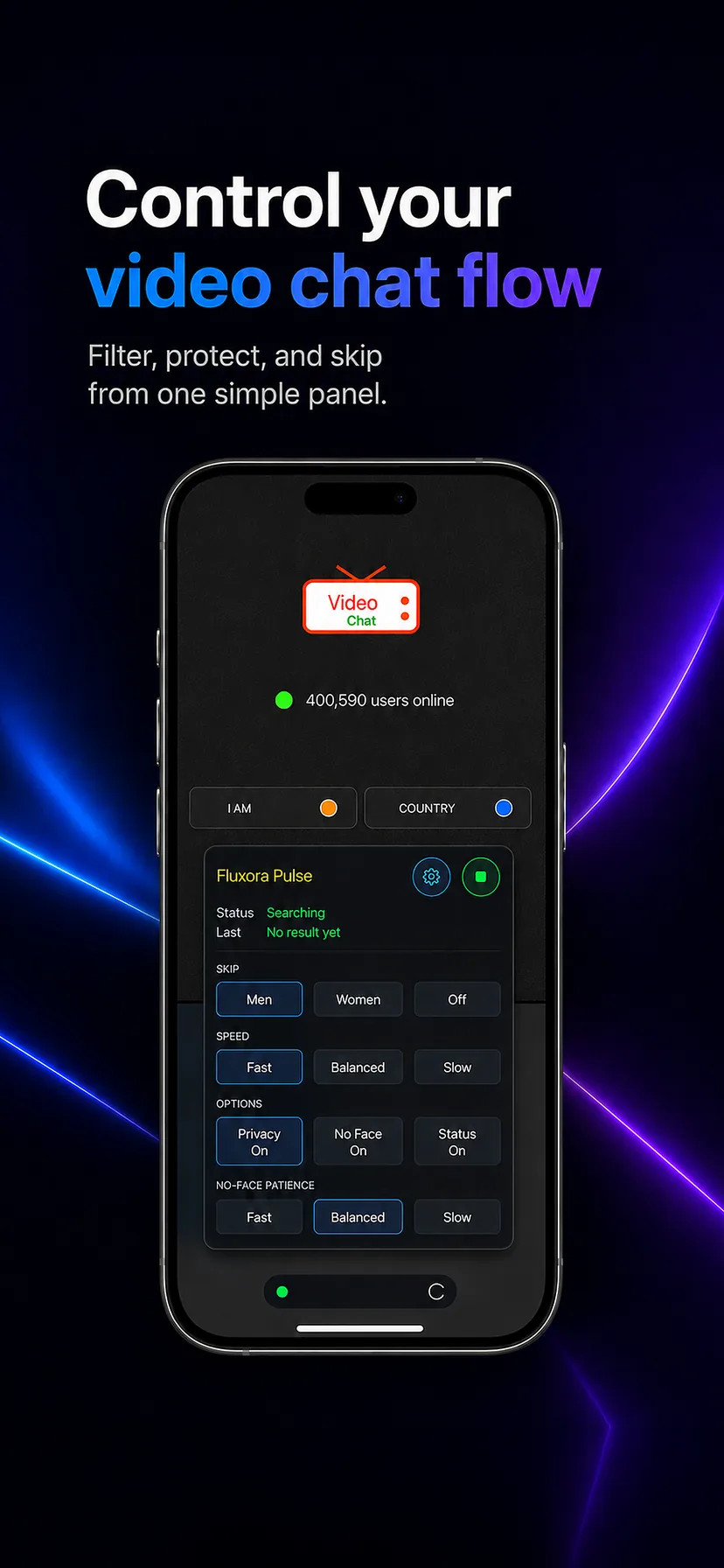
Watch how to enable Fluxora Pulse in Safari, choose Male as the skip target, and start auto-skipping on OmeTV from your iPhone.
iPhone Safari extensions need to be turned on manually. After that, Fluxora can appear on supported video-chat pages in Safari.
Open Settings on your iPhone
Go to Apps > Safari > Extensions
Tap Fluxora Pulse
Turn on Allow Extension
Open Safari, visit OmeTV, and allow Fluxora for that site
Tell Fluxora which chats to move past before you start searching.
Avoid empty rooms, covered cameras, and sessions where no face is visible.
Keep your camera blurred while Fluxora searches, then reveal when you are ready.
Start, stop, and adjust your settings directly on the video-chat page.
These are the most common setup fixes when an iPhone Safari extension does not appear.
Download it from the App Store, enable it once in Safari, and video analysis stays on your device — nothing is uploaded to Fluxora servers.